login imagelogin image
Products
Industries
Pricing
Resources
Company
  • Help Center
  • Documentation
  • Miscellaneous

Subscribe to our newsletter for the latest updates and insights.

Stay ahead with the latest updates, insights, and events by Teldrip.

login image

Teldrip is a dynamic martech company that specializes in cutting-edge communication solutions. With a focus on enhancing connectivity, Teldrip brings together a team of experts dedicated to developing advanced communication solutions.

  • Facebook
  • Facebook
  • Facebook
  • Facebook

Company

  • Home
  • About us
  • Careers
  • Contact us

Resources

  • Blogs
  • Case Study
  • Integrations
  • Events

Insights Features

  • Call Tracking
  • Call Routing
  • Call Reporting
  • Pay Per Call
  • Payout Management
  • Real Time Bidding

Connect Features

  • Virtual Phone Number
  • Campaigns
  • Autodialer
  • Call Management
  • Workforce Management
  • Communication Management

Copyright © Teldrip LLC 2026 All Rights Reserved

  • Privacy Policy
  • Terms & Condition

How to Approve an Impersonation Request

Date Modified: March 10, 2026

What is Impersonation?

Impersonation is a feature that allows Teldrip to temporarily access an Admin’s account in order to provide technical support, troubleshoot issues, or verify configurations directly within the account.

Instead of asking the Admin to share multiple screenshots or perform several troubleshooting steps, impersonation allows Teldrip to view and interact with the account in the same way the Admin would. This helps resolve issues faster and more efficiently.

For security and transparency, impersonation can only be performed after the Admin explicitly approves the request and specifies the duration for which the access should be granted.
 

Steps to Approve or Reject an Impersonation Request

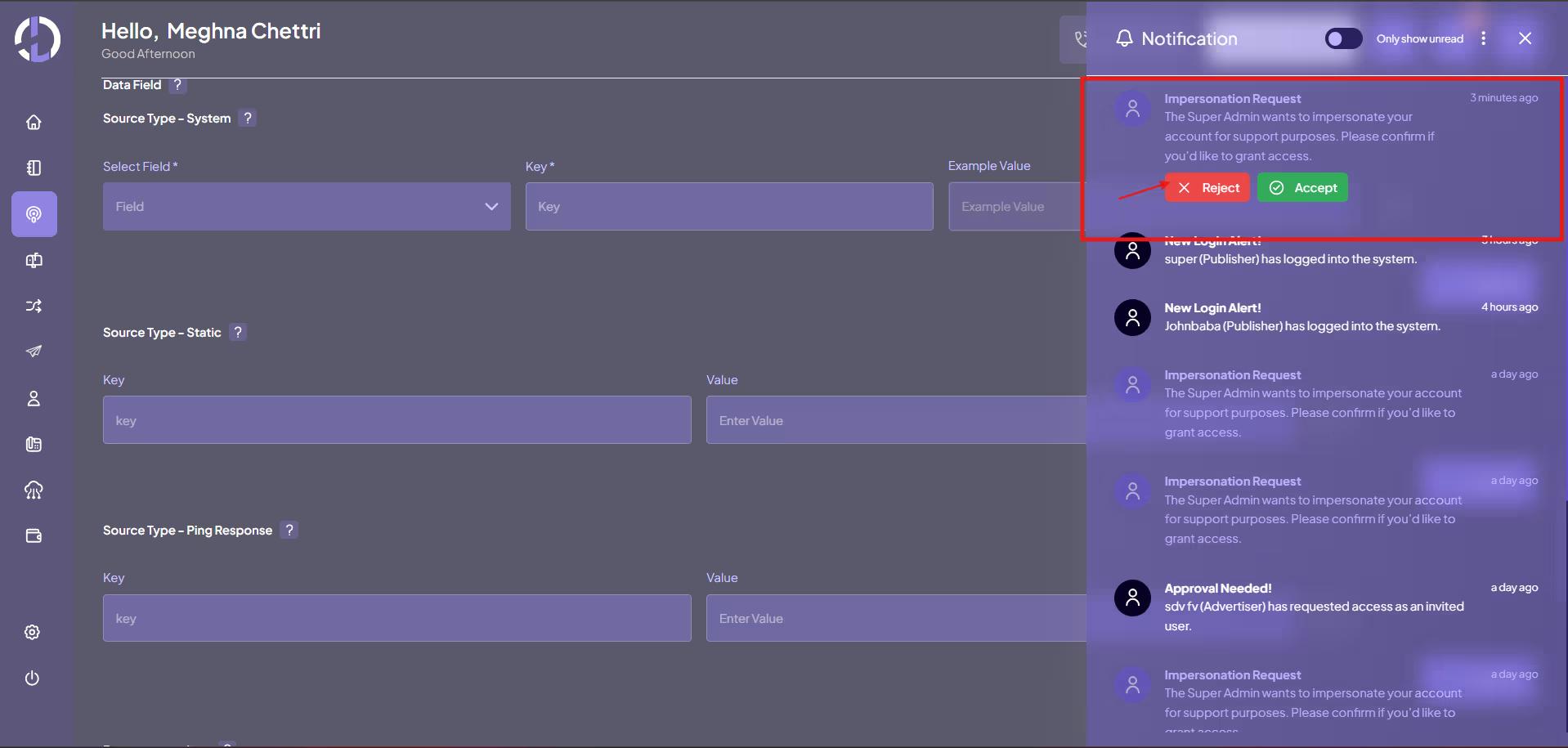
Receive Notification

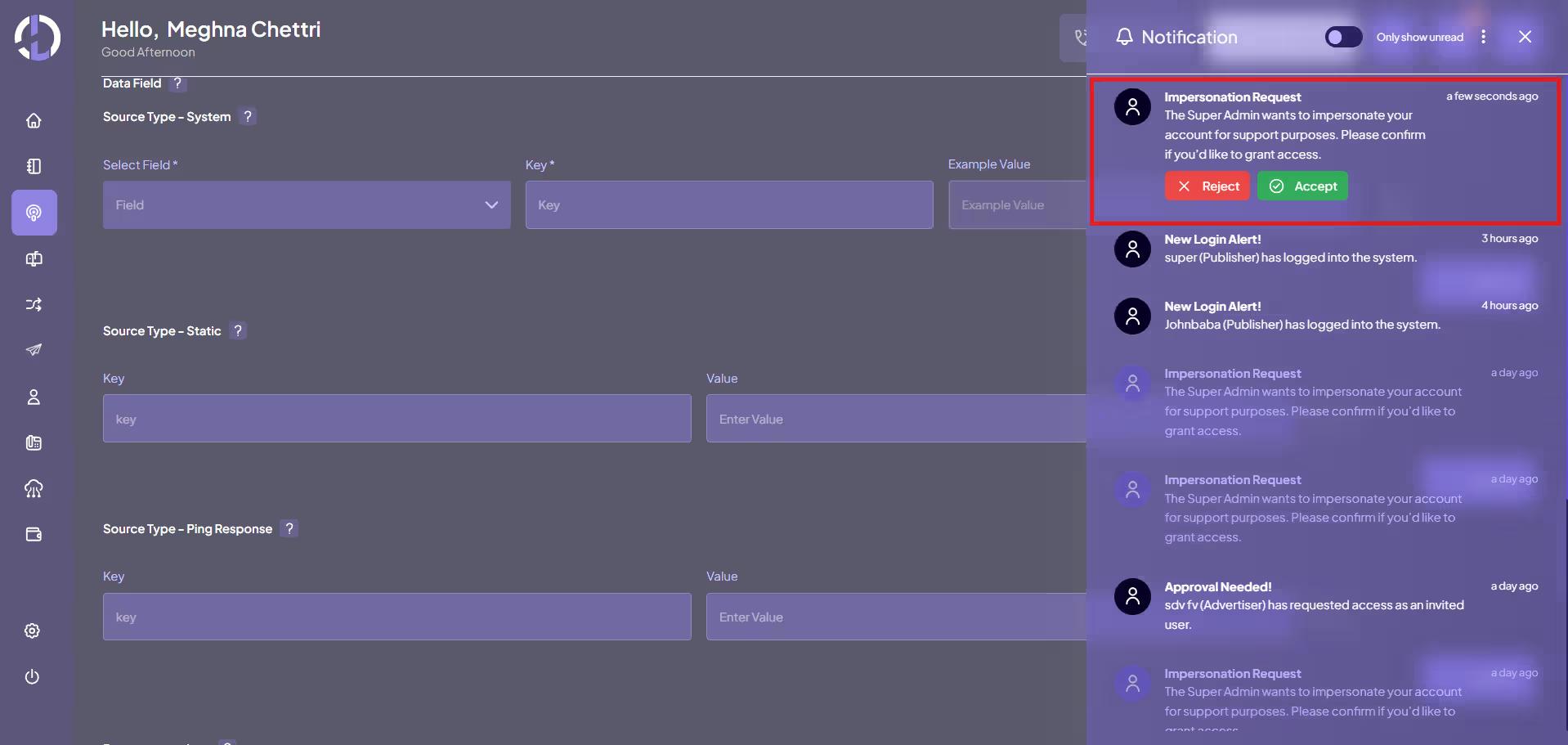
When Teldrip sends an impersonation request, the Admin will receive a notification with the message:
“The Super Admin wants to impersonate your account for support purposes. Please confirm if you’d like to grant access.”

Receive Notification

Review the Request

  • The Admin will see two available actions:

    • Accept

    • Reject

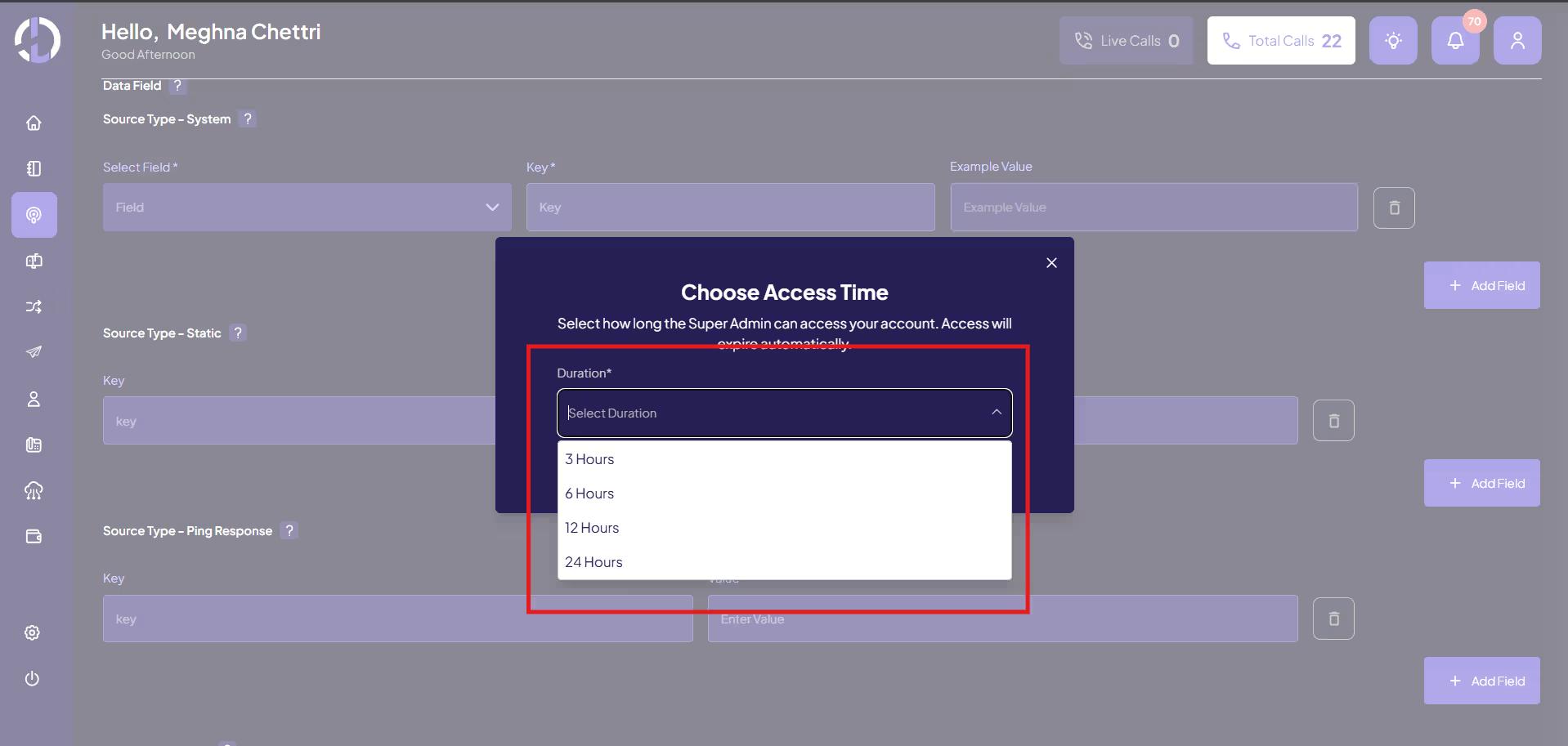
Approve the Request (If Access Should Be Granted)

  • Click Accept.

  • Select the time duration for which the impersonation access should be allowed.

Approve the Request (If Access Should Be Granted)

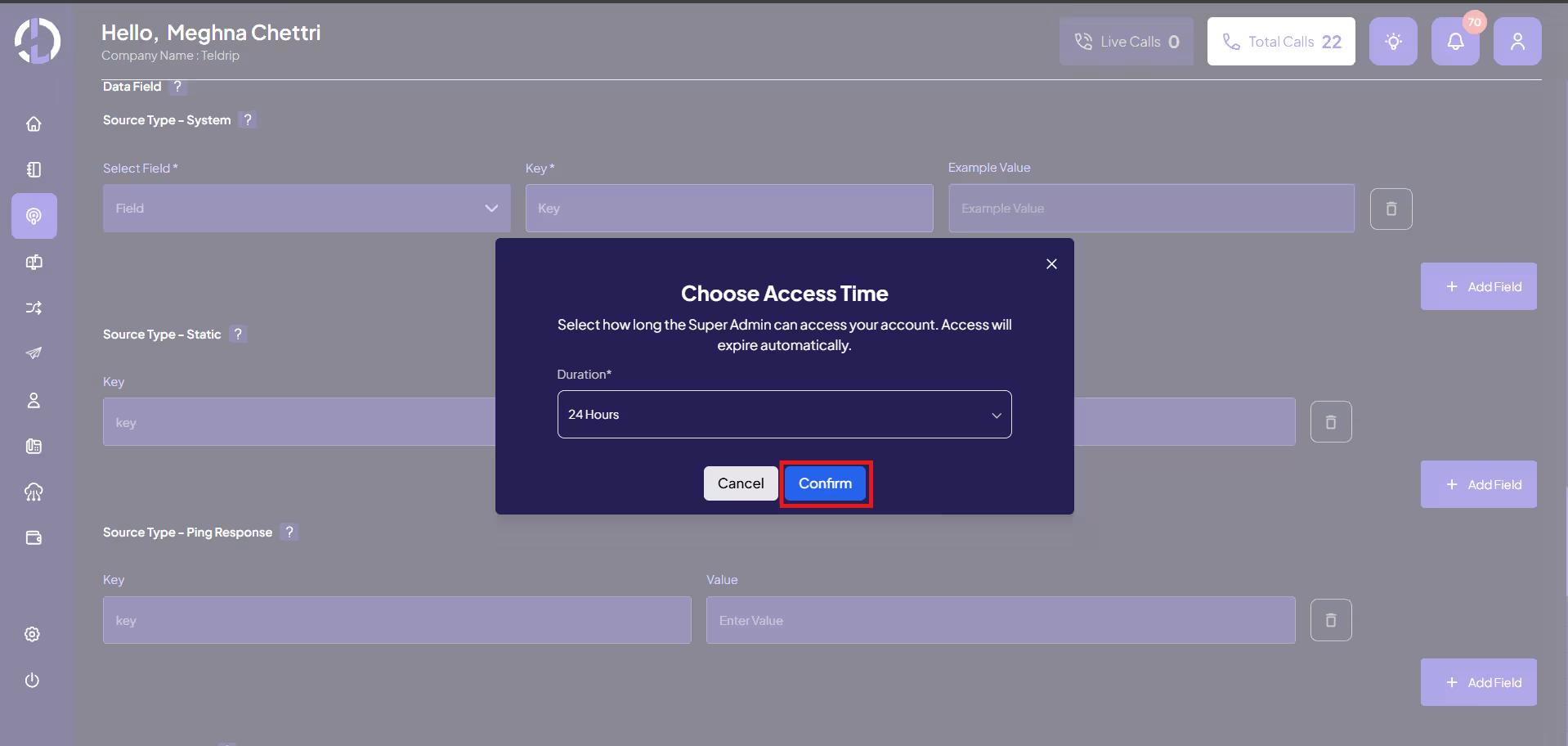
Confirm Approval

After selecting the duration, confirm the approval.
Teldrip will then be able to access the Admin account for the selected time period.

Confirm Approval

Reject the Request (If Access Should Not Be Granted)

  • Click Reject if you do not want to grant impersonation access.

  • The request will be declined and no access will be provided.

Note

  • The access granted to Teldrip is temporary and will automatically expire after the selected duration.

Reject the Request (If Access Should Not Be Granted)

Documentation

  • Dashboard
  • Reporting
  • Offering
  • Advertiser- Create Destination
  • Advertiser
  • Publisher
  • Billing
  • Payout
  • Profile
  • Phone Line- Line Manager
  • Phone Line- Call Guard
  • Users
  • Campaign
  • Miscellaneous